Make sure you are using the latest version of Model RealTime before running the Art Exporter and then perform Help - Install New Software.
Note: Before installing, you must disable the build server. Clear the Launch build server at start-up checkbox in Window -> Preferences -> RealTime Development -> Build/Transformations and restart Eclipse. After the installation is complete, re-enable the build server and restart Eclipse again.
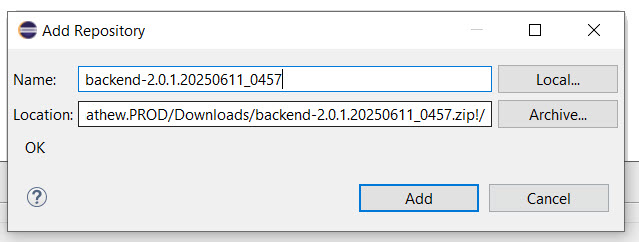
Press the Add button and give a unique name to the P2 repository (e.g. ArtExporter_<today's date>). Then press the Archive button and browse to the location where you saved the Art Exporter ZIP file. Press the OK button.
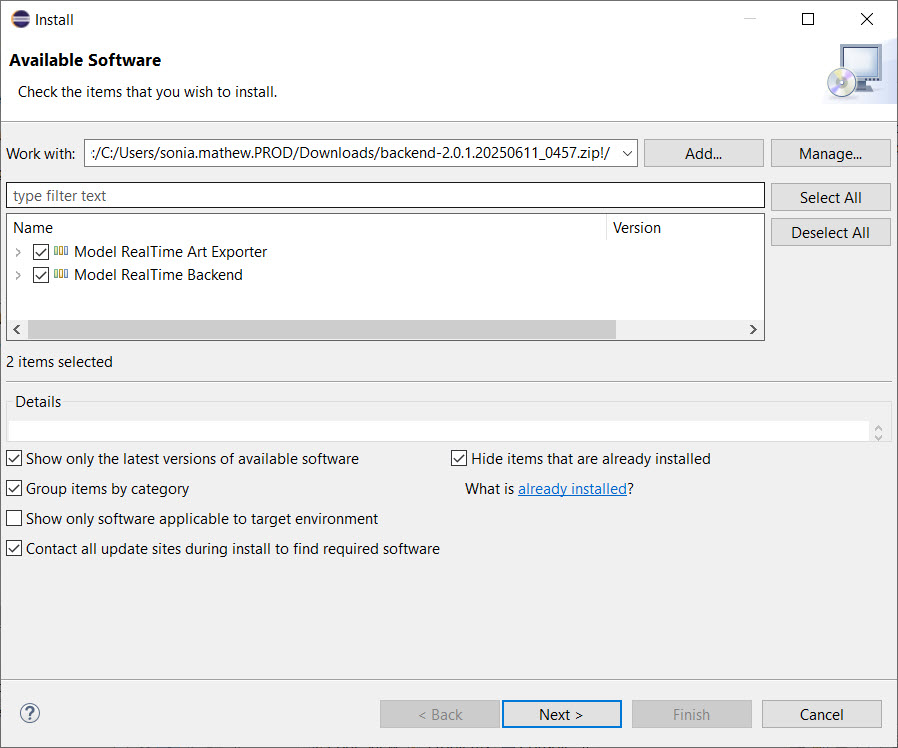
Mark all checkboxes and press Next.
Accept the license agreement and press Next.
Press Finish to start the installation. Once it is completed you will be prompted to restart Model RealTime. Do so.
Export Model Options
Export Model from UI
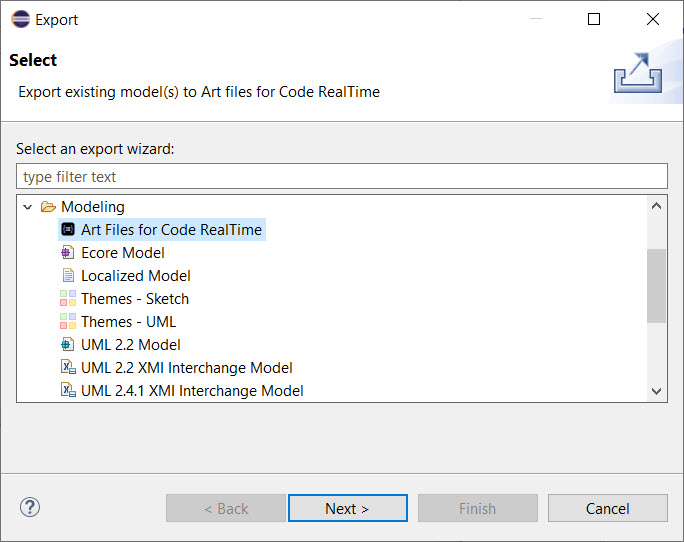
Start the Art Exporter from File - Export. Under the Modeling category, select Art Files for Code RealTime and press Next.
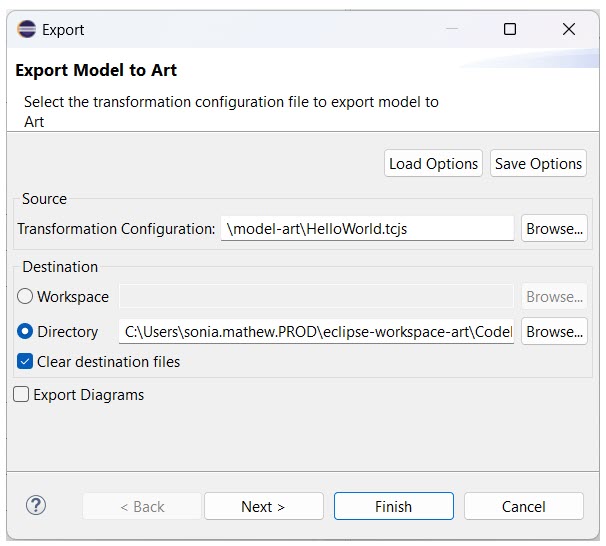
The Export Model to Art dialog opens.
Set the options as required:
Load Options: Use the Load Options button to select an existing ArtExportOption.txt file from your file system. Loading this file automatically populates the dialog with the saved configurations, ensuring consistency across exports.
Save Options: Use the Save Options button to save the current dialog settings to an ArtExportOption.txt file in a location of your choice, for future use or sharing.
Source: Specify a TC file from the workspace under Transformation Configuration. This file, and all its source elements, will be exported to an Art file.
Destination: Select either a Workspace project or a Directory on the file system. Exported Art files are placed in subfolders by project association.
Clear destination files: Select this checkbox (enabled by default) to delete all existing content in the specified destination directory before the export begins. If unselected, the exporter preserves existing files and only updates or adds the relevant generated files.
Export Diagrams: When enabled, the Art Exporter creates JSON files containing layout information and places them in a layouts folder. These layout files help ensure diagram symbol position and size in Code RealTime closely match their appearance in Model RealTime.
Limitations: Line bendpoints are currently not supported by Code RealTime, so diagrams may not be 100% identical. Manual layout export is available for state diagrams only. Structure and class diagrams for C++ types are not yet supported. It is not possible to export diagrams from the command line.
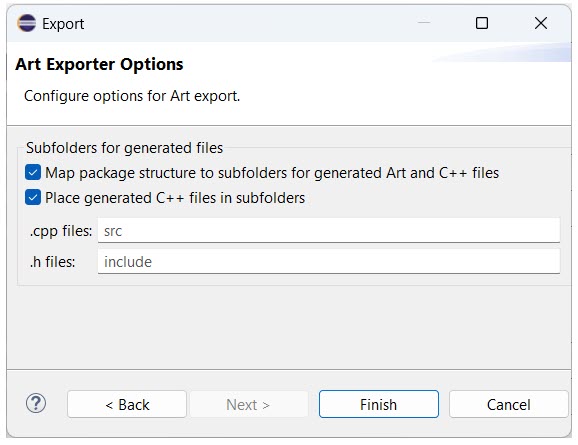
Click Next to open the Art Exporter Options page.
Under Subfolders for generated files, configure the following:
Map package structure to subfolders for generated Art and C++ files: When selected (enabled by default), the exporter preserves the package hierarchy from your model within the destination directory. Uncheck this option if you do not want the package structure maintained in Code RealTime.
Place generated C++ files in subfolders: When selected (enabled by default), C++ files are placed in dedicated subfolders. Specify the subfolder names for:
.cpp files (e.g., src)
.h files (e.g., include)
Note: If a subdirectory is already defined in the Code Generation tab of Transformation Configuration (.tcjs), that setting takes precedence over these values.
Include TargetRTS headers in all exported C++ files: Leave this unchecked (default) for optimal build performance, and manually add required includes to your source model. Check this option if you need to temporarily prevent compilation errors by automatically injecting #include "RTStructures.h" into all generated header files.
Click Finish to complete the export.
Export Model from Command Line
Locate the modelcompiler.jar file in the tools directory.
Run the model compiler from the command line. Refer to the
Model Compiler documentation to invoke the model compiler from the command line.
-DRSA_RT_HOME=<path_to_rsa_rt_home>: Specifies the rsa_rt directory within a Model RealTime installation.
--root=<path_to_model_root>: Specifies the root directory of your workspace.
--out=<output_directory>: Specifies output folder to place the exported Art and TC files.
--<license_type>=<value>: Refer to the
Model Compiler documentation
to learn more about the usage of license. You can copy your license key from the Model Compiler console when building within Model RealTime.
--exportArt <path_to_transformation_config_file.tcjs>: Specifies the path to the input .tcjs file.
Note: Replace the placeholders with the correct paths and license key.
After executing the model compiler, navigate to the output directory specified in the --out parameter and verify the generated files.
Using Exported Files in Code RealTime
To use the exported Art files, add them as workspace folders in the latest version of Code RealTime.
Note that you can create additional Art files and TC files as required in these workspace folders in Code RealTime. Just make sure to give them names that won't clash with the names of generated Art files. Thereby you can re-export the source models if you have changed them in Model RealTime, or want to export them with some different settings.
In the example below, three Art files (in two workspace folders) have been exported. The other Art file (Top.art) and the TC file (app.tcjs) have been manually created in Code RealTime.
Refer to the following video to learn about Art Exporter:

 Refer to the following video to learn about Art Exporter: